An Ambient Claude Usage Panel on a Turing Smart Screen
// Published On: Jun 15, 2026
#homelab
I live in Claude Code most of the day, and I kept wanting to know — at a glance, without alt-tabbing or opening a menu — how much of my usage window I’d burned through. There are taskbar widgets that do this, but they clutter the one strip of screen real estate I’m most protective of. What I actually wanted was an ambient readout: a little dedicated display off to the side that just shows the numbers.
I had a Turing 3.5” USB smart screen in a drawer. Perfect.
What it shows
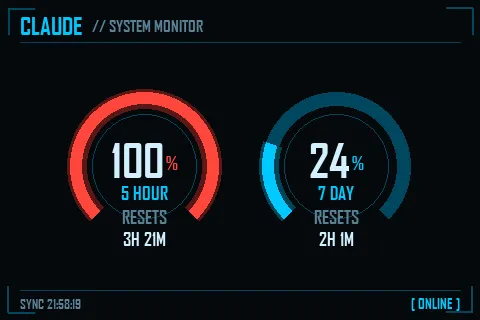
Claude’s usage has two rolling windows: a 5-hour session window and a 7-day window. The panel renders both as gauges, with a live countdown to when each one resets:
- 5-hour — almost always the one you bump into during a heavy session.
- 7-day — the slower-moving budget. When its reset is more than a day out the panel prints the actual day (“Tue 3PM”) instead of an unreadable “6d 16h.”
Where the numbers come from
Claude Code stores an OAuth token locally (in ~/.claude/.credentials.json). The
tool reads that token and calls an endpoint the official usage UIs use:
GET https://api.anthropic.com/api/oauth/usage
anthropic-beta: oauth-2025-04-20
which returns five_hour and seven_day utilization plus reset timestamps. That
endpoint is undocumented and reverse-engineered, so there’s a fallback: a 1-token
/v1/messages ping, reading the anthropic-ratelimit-unified-* response headers.
If the first path ever breaks, the second keeps the panel alive.
The part I didn’t write: the screen driver
Here’s the honest disclosure — I did not write the hard part. Talking to these USB-C/USB-serial panels (the framing, the RGB565 serialization, the per-revision protocol quirks) is all handled by the superb mathoudebine/turing-smart-screen-python library. My project is just a data source and a renderer sitting on top of it.
The library even documents exactly this use case in its wiki — Control screen from your own code — which is the pattern I followed. The entire integration boils down to: build a Pillow image, then hand it over.
from library.lcd.lcd_comm_rev_a import LcdCommRevA, Orientation

lcd = LcdCommRevA(com_port="COM7", display_width=320, display_height=480)
lcd.Reset()
lcd.InitializeComm()
lcd.SetBrightness(level=60)
lcd.SetOrientation(orientation=Orientation.REVERSE_LANDSCAPE)

lcd.DisplayPILImage(my_frame)   # that's it
Everything else in my repo is just deciding what my_frame looks like.
Two looks, because why not
Since rendering is just “draw a Pillow image,” the theme is entirely up to me. I built two.
A JARVIS-style HUD (the one up top): arc gauges on black that glow cyan → amber → red as utilization climbs, with corner brackets and a little “system monitor” header.
And an LCARS console, for when I want my desk to feel like the bridge of the Enterprise:
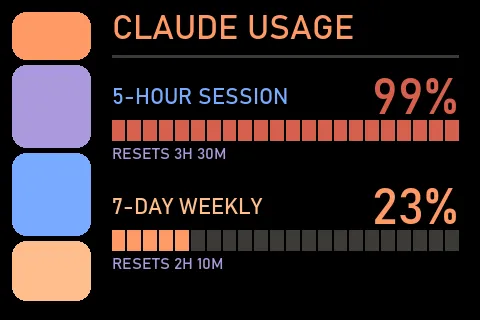
The panel rotates between them every 30 minutes. That’s partly for fun and partly peace of mind — these are IPS LCD panels, which don’t suffer real burn-in, but gently swapping the static layout costs nothing and quiets the worry.
A couple of Windows gotchas worth sharing
Getting it to launch silently at login turned up two non-obvious snags, both documented in the repo:
-
The
pythonw.execonsole-window trap. A virtualenv’spythonw.execan be a trampoline that re-execs the base consolepython.exe, which makes Windows pop a terminal full of debug logs. The fix is to launch the base (real)pythonw.exedirectly — a true GUI-subsystem binary — withPYTHONPATHpointed at the venv, via a tinylauncher.vbs. -
Don’t restart too fast. The 3.5” panel’s reset holds its COM port busy for several seconds. Kill the old process and relaunch immediately, and the new one blocks trying to open a still-busy port — the screen goes dark and stays that way. The restart script polls the port until it opens before relaunching.
Get it
The renderer, themes, and full Windows deploy notes are here: team-ward-labs/StatusDisplay.
And again, all credit for the actual screen communication goes to mathoudebine/turing-smart-screen-python — if you have one of these panels and want to display anything on it from your own code, start with their wiki.